title: "Set up a second LYNX user for manual trading" slug: lynx-zweiter-benutzer group: strategy ---
Set up a second LYNX user for manual trading
WheelTrading does not transmit any order data to LYNX / IBKR. You enter the order values field by field into your broker's order ticket yourself and submit the order there yourself (see the help topic "License-free order transmission to LYNX / IBKR").
For this manual trading in a separate browser you need a second LYNX user to be logged in to LYNX+ Web in your browser. This page explains why and how.
Why a second user is needed
Your master user (the one you connected in WheelTrading under Settings - Accounts & IBKR) runs continuously inside the WheelTrading CP-gateway container - invisible on our server - so that positions, fills and market data stay in sync in real time.
LYNX and IBKR only allow one active session per user. If you also log in to LYNX+ Web as the master user in your own browser, the WT gateway session drops immediately: screener, roll manager, FYI and live positions stop updating until the gateway is restarted.
The solution is a second user for the same account, used only for manual trading in the browser. That runs on its own LYNX session and does not disturb the WT gateway.
Create the second user in LYNX
Official LYNX walk-through: <https://www.lynxbroker.de/service/depot-login/anmeldung-und-zugang/zweiter-benutzer/>
Steps in the client portal:
- Log in to the LYNX client portal as the master user (account
holder).
- *Settings - User settings - User access management - "Create
another user"*.
- Pick the role "Secondary user for the account holder". Not
"Security officer".
- Choose a username (e.g.
2nd separate trade user), enter an email.
Recommended permission profile
Enable only what is strictly needed:
- Notifications -> Email address ✓
- Login -> Password + Survey subscription ✓
- **Securities -> User information, Shared security device,
Security device** ✓
- Trading platform -> everything off (trade simulation, market
data, subscriber status - not needed).
- Trade access -> TWS -> QuickTrade, TWS and WebTrader ✓
(LYNX+ Web is included here.)
- Trading permissions ✓ (read-only view of account permissions).
- **Reporting, Fund management, Account settings, Customer management
(KAM) - all off**. The trade user should only trade, never move money and never change account configuration.
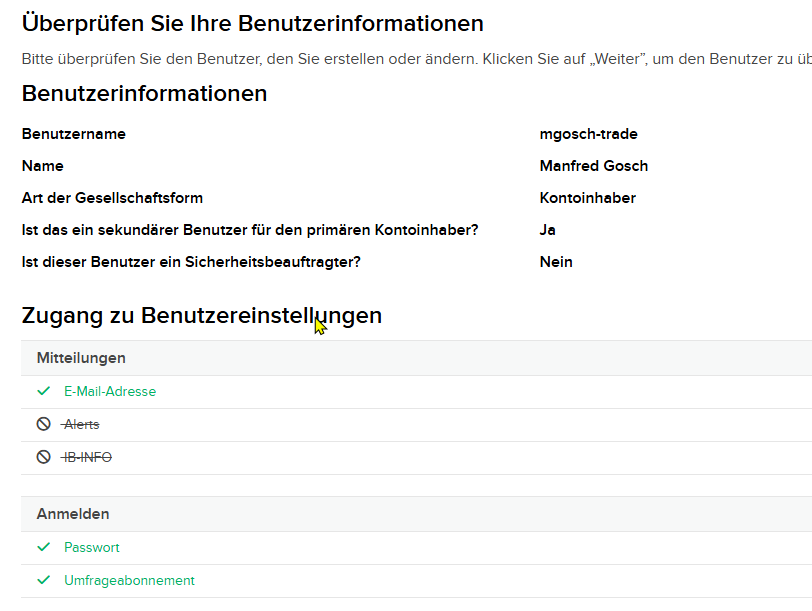
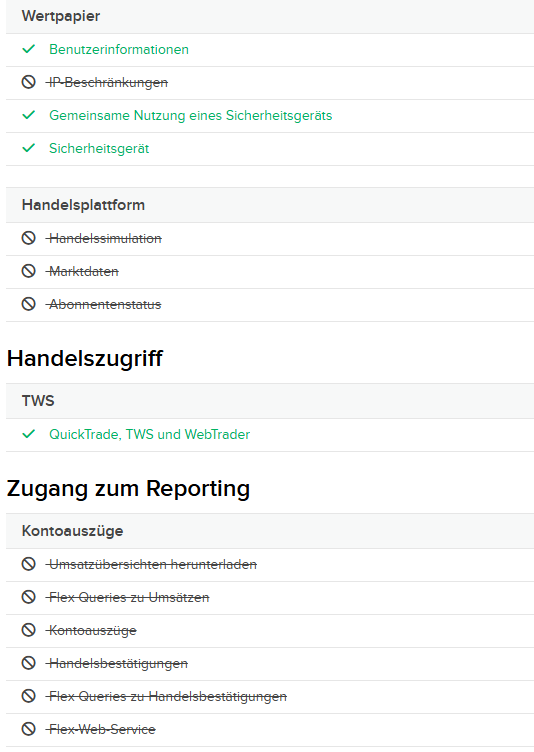
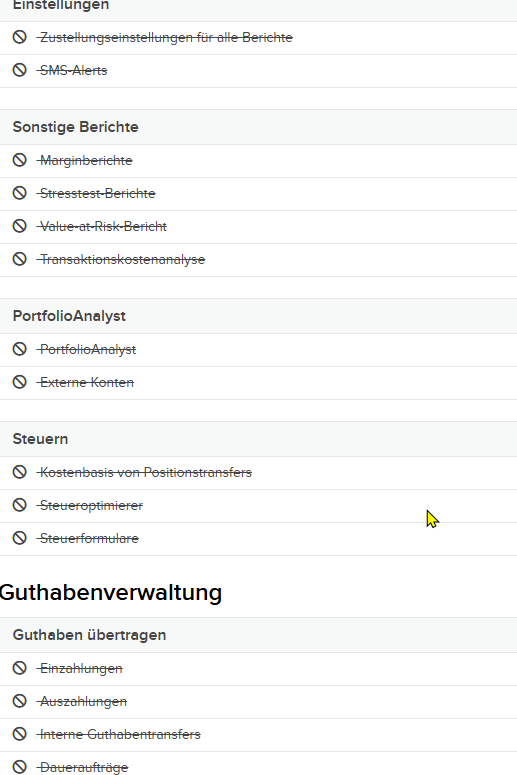
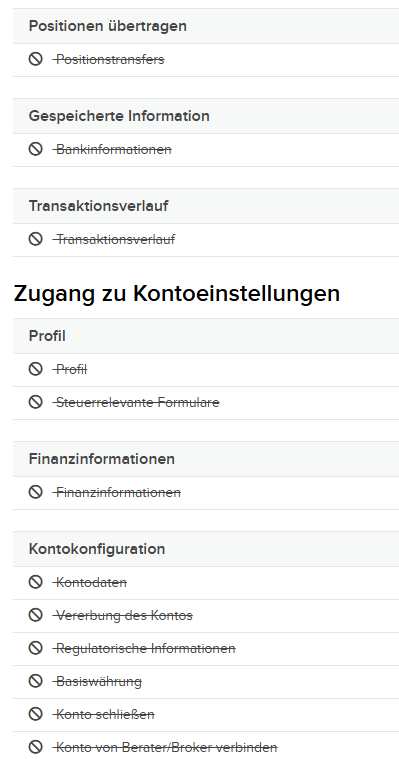
The four screenshots below show the exact configuration in the LYNX portal (green tick = enabled, struck-through prohibition icon = disabled). The portal is in German — the buttons in your account carry the same labels as in the screenshots.
1. Confirm user information
The user is set up as "secondary user for the primary account holder = Yes" and "security officer = No". Only Email address, Password and Survey subscription are enabled.
2. Securities / Trading platform / Trade access
Securities: user information, shared security device and security device enabled. IP restrictions off.
Trading platform: trade simulation, market data and subscriber status off. The trade user cannot change market-data subscriptions.
Trade access -> TWS: only QuickTrade, TWS and WebTrader enabled. That is what allows the LYNX+ Web login.
Reporting -> Statements: all off. WT pulls statements and trade confirmations via your master user.
3. Reports / Fund management
Settings, Other reports, PortfolioAnalyst, Taxes: all off. The trade user cannot create reports and cannot operate the tax optimizer.
Fund management -> Transfer funds: deposits, withdrawals, internal transfers and standing orders off. This means the trade user cannot move any money even if their password is compromised.
4. Account settings
Position transfers, banking information, transaction history, profile, financial information, account configuration (incl. close account / base currency / account inheritance) — all off.
5. Trading permissions + customer management
Trading permissions ✓ — read-only view of the account permissions, not editable.
Customer management (KAM): off.
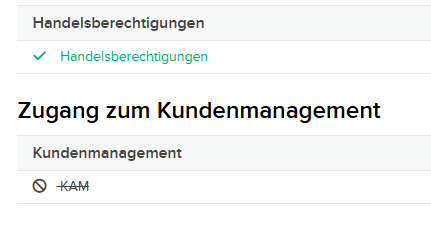
That keeps the trade user restricted to the absolute minimum: login and trading on LYNX+ Web. Everything else (reports, taxes, account data, money movement) stays with the master user only.
2FA / security device
The checkbox "Shared security device" ✓ means the second user uses the same TOTP app or the same security key as the master user, so there is nothing new to set up:
- The usual 2FA prompt appears when signing in to LYNX+ Web.
- Order submission in LYNX+ Web may - depending on your account
configuration - trigger a second confirm prompt on your phone. That also uses the same authenticator.
On the WheelTrading side there is nothing to configure for 2FA - the confirmation happens entirely between you and LYNX.
Store the trade username in WheelTrading
WheelTrading never stores a password or TOTP secret of your LYNX account. But so the send-confirm dialog can remind you which user your browser should be signed in as:
- Open WheelTrading, Account & Security.
- Open the "Order transmission" panel.
- In the field "LYNX login username (second browser)" enter
the name of the second user, e.g. 2nd separate trade user. No password - just the name as a reminder.
- Save.
The send-confirm dialog then shows an amber reminder line: "Make sure your separate browser is logged in to LYNX+ as `2nd separate trade user`.".
Recommendation: dedicated Chrome / Edge profile for the trade user
You do not need two different browsers. A single browser with a dedicated profile for the trade user is enough. In Chrome:
- Click the profile icon (top right).
- "Add another profile".
- Name it e.g. "LYNX-Trade".
- On LYNX-Trader.com sign in as
2nd separate trade user(confirm 2FA on your
phone). Have the profile remember the login.
- Keep the window open and trade in it manually. Transfer the order
values from WheelTrading field by field via the copy button into the LYNX+ ticket.
- Use WheelTrading in your default profile and enter the order in
the LYNX-Trade profile — or operate WheelTrading directly from inside the LYNX-Trade profile. All that matters is that the second user's LYNX+ session runs in its own profile and does not disturb the master user's WT gateway session.
Alternative if a second profile feels like too much: keep a permanent incognito / private window with the LYNX+ login. The downside is that incognito windows do not persist cookies, so you will have to sign in every day.
What if I accidentally logged in to LYNX+ as the master user?
No data loss, but the WT connection is down. How to recover:
- Sign out from LYNX+ in the browser (master user).
- In WheelTrading go to Account & Security -> IBKR gateway and
click "Restart gateway". After about 60-90 seconds the connection is back.
- From now on only sign in to LYNX+ Web as the second user.
What the trade user sees and can do (role split)
Quick overview of what the second user can do compared to the master user. Ground rule: both users are attached to the same account - positions, holdings and the order book are identical. Differences come only from permissions and session isolation.
| Question | Trade user (second user) |
|---|---|
| Same positions as the master? | Yes - same account, same position blotter. |
| Sees open orders placed by the master? | Yes - account level, independent of the user. |
| Are their orders picked up by the WT gateway? | Yes - WT reads /iserver/account/orders at |
| the account level and matches fills to the right | |
| proposal via ConID + limit price (order adoption). | |
| Do trade permissions need to be requested again? | No - trading permissions (US options, margin, |
| ...) are attached to the account. The trade user | |
| inherits them automatically. The *Trading | |
| permissions* panel is display-only. | |
| Does the user need separate market-data subs? | No - market-data subscriptions live at the |
| account level and are shared on login. The trade | |
| user is NOT allowed to change them (options | |
| Market data and Subscriber status are disabled | |
| in their profile). | |
| Trading password | Separate password - LYNX generates a new one |
| when creating the user. WheelTrading does not | |
| store it. | |
| 2FA / TOTP | Shared security device (option *Shared |
| security device* ✓). You do NOT need a second | |
| authenticator app. | |
| Can the trade user move money? | No - Fund management + withdrawals are |
| disabled in the recommended permission profile. | |
| Can they close the account / change base | No - account settings are all disabled. |
| currency? | |
| Can they see reports / statements? | No - reporting access is disabled. WT pulls |
| statements via the master user. |
Order adoption by WheelTrading (details)
The WT gateway container runs as the master user. When you submit an order via LYNX+ Web as the trade user, it appears a few seconds later in the master user's /iserver/account/orders feed (account-level view). The order_adoption_service matches it to the corresponding sent_to_lynx proposal in WheelTrading using symbol + ConID + strike + expiry + side + limit price and moves the proposal to open. Fills, buy-to-close and assignments then flow through the regular sync pipeline (live fill + FlexQuery) - same behaviour as for an order placed by the master user.
Suggestion for the first live trade: deliberately pick a small test order (e.g. 1 contract, deep OTM, long expiry) to verify that WT actually maps the trade-user order back to the proposal. Watch Trades -> Open - the proposal should flip from Sent to Open within ~90 seconds.
Legal note
WheelTrading does not transmit any order data to LYNX / IBKR. You enter the order values field by field into the LYNX+ Web ticket yourself and submit the order exclusively yourself. Legally the route is therefore identical to copy-paste under the BaFin guidance on investment intermediation (§ 2(10) KWG) - pure tool usage, no investment intermediation.